Using the B2B Portal
Last updated
The B2B Portal lets your business customers sign in, browse your product catalog, and place wholesale orders themselves — without you having to create each order manually. Orders placed through the portal arrive in ChannelDock as B2B orders. You review and approve each order before it enters fulfillment.
Enabling the B2B Portal
-
Go to B2B Portal settings in ChannelDock.
-
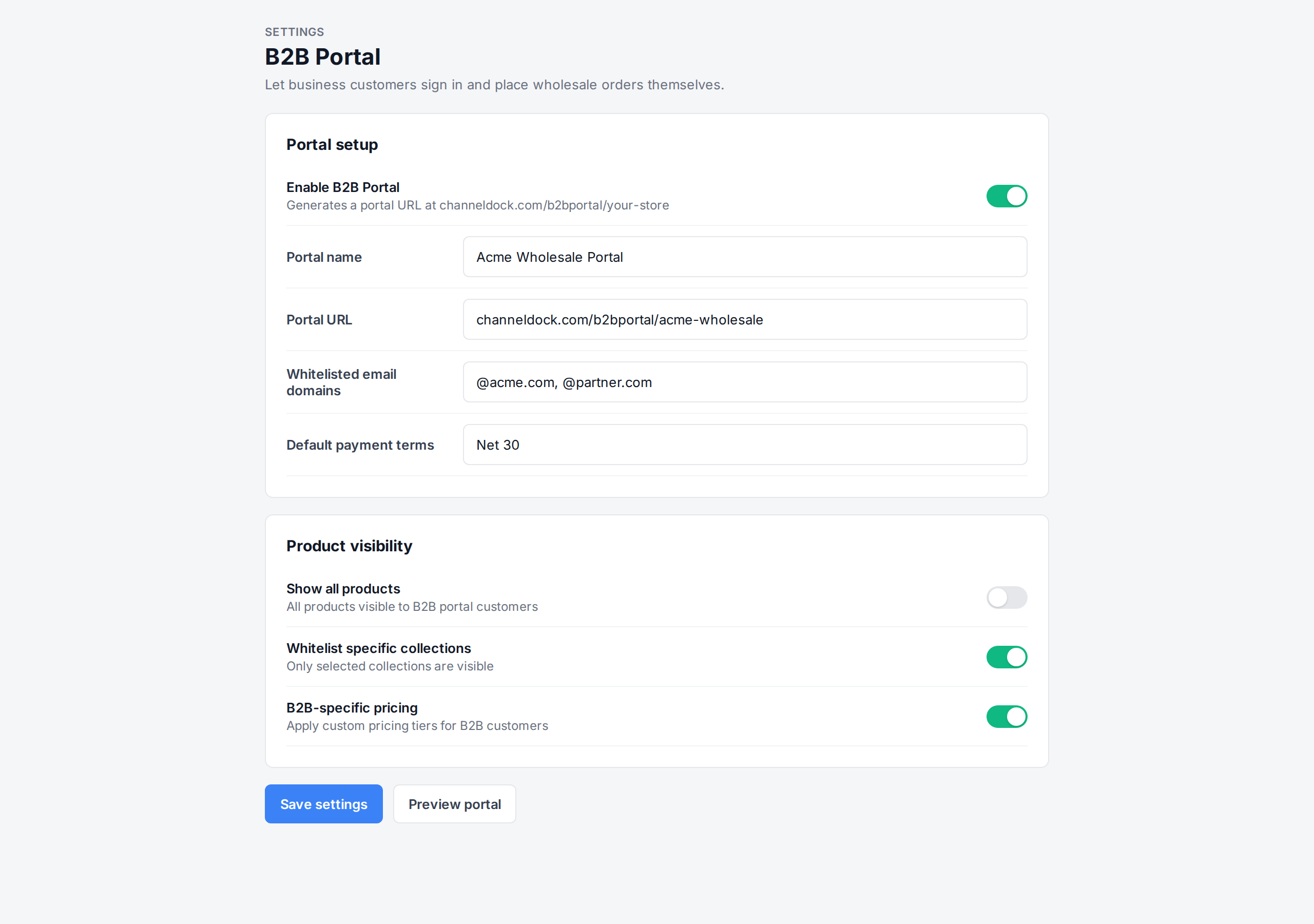
Toggle Enable B2B Portal. Once enabled, ChannelDock generates a portal URL (for example
https://channeldock.com/b2bportal/your-store). You can also host the portal on your own domain, such ashttps://yourwebsite.com/b2b.
-
Configure the portal:
- Portal name — shown to customers at sign-in.
- Whitelisted email domains — optional. Restrict sign-in to specific business email domains (e.g.
@yourcompany.com). - Default payment terms — applied to all portal orders unless overridden.
- Product visibility — choose which products or collections are visible to B2B portal customers.
- Pricing — set B2B-specific pricing tiers if needed.
-
Save. The portal is now live at the generated URL.
How customers place orders
- Your customer visits the portal URL and signs in (or creates an account if you’ve allowed it).
- They browse products, add quantities (in carton multiples if you’ve set units per box), and submit the order. They can also upload files such as a PO, artwork, or technical specs.
- The order appears in ChannelDock’s Open orders list with a B2B badge and the customer’s PO number, waiting for your review.
- Review and approve the order in ChannelDock. Nothing moves to picking until you confirm it.
- After approval, pick and ship it using the B2B pick & pack flow (or your standard pick & pack flow for smaller parcel orders).
Tip: Customers can only see products you’ve made visible to the portal. If a product is missing, check the product’s visibility settings and the B2B Portal product scope.
Portal vs manual B2B orders
| Aspect | Manual B2B order | Portal order |
|---|---|---|
| Who creates it | You (the seller) | The business customer |
| PO number | You enter it | Customer enters it |
| Product selection | You select | Customer browses catalog |
| Payment terms | You set per order | Default from portal settings |
| Seller approval | Not required | Required before fulfillment |
| Fulfillment | Same B2B workflow | Same B2B workflow after approval |
Once approved, portal orders follow the same B2B pick & pack and shipment type rules as manually created B2B orders.
Related articles
Was this helpful?