Bulk picking B2B orders
Last updated
The B2B pick & pack workflow is built for orders with high quantities per line — typical for wholesale or store replenishment. Instead of scanning each unit individually, you can confirm a full carton or pallet quantity in one step, while ChannelDock still tracks stock reservations correctly.
Make sure your products have Units per box configured for the best picking experience. See Setting up products for B2B picking.
Opening a B2B pick session
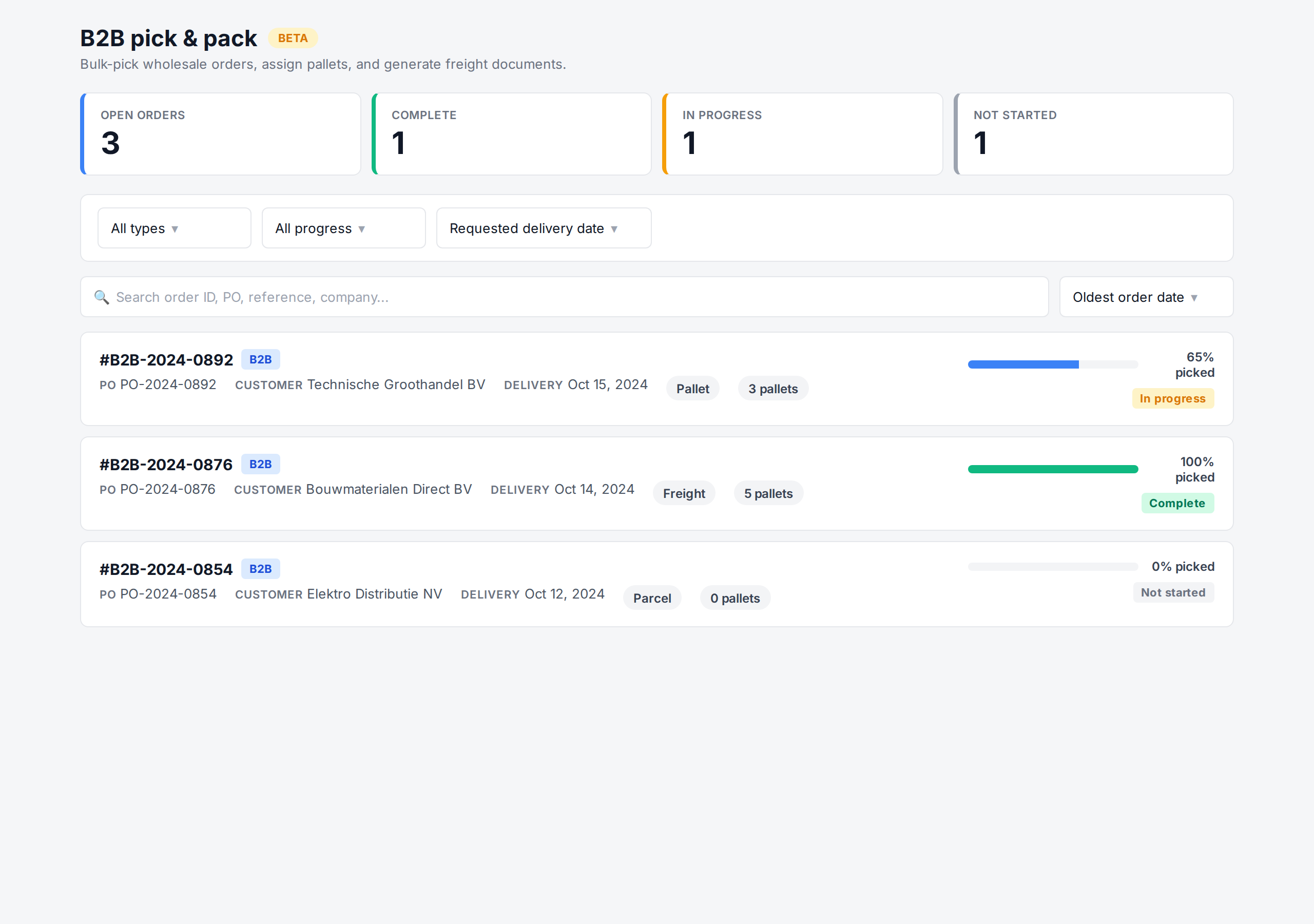
- Go to B2B → Pick & Pack (or B2B pick & pack from the main menu).
- The list shows all open B2B orders. Use the filters to narrow by:
- Shipment type — Parcel, Pallet, or Freight
- Requested delivery date
- Customer reference
- PO number
- Click an order to open the B2B pick screen.
Picking by carton or pallet quantity
On the B2B pick screen each order line is shown with:
- The total quantity to pick.
- The units per carton/box, if defined on the product.
- An input where you can enter the picked quantity in units, cartons, or pallets.
Enter the quantity in the unit you actually pick. ChannelDock converts cartons and pallets to units behind the scenes and updates the line’s picked total. You can pick a line in multiple steps until it’s complete.
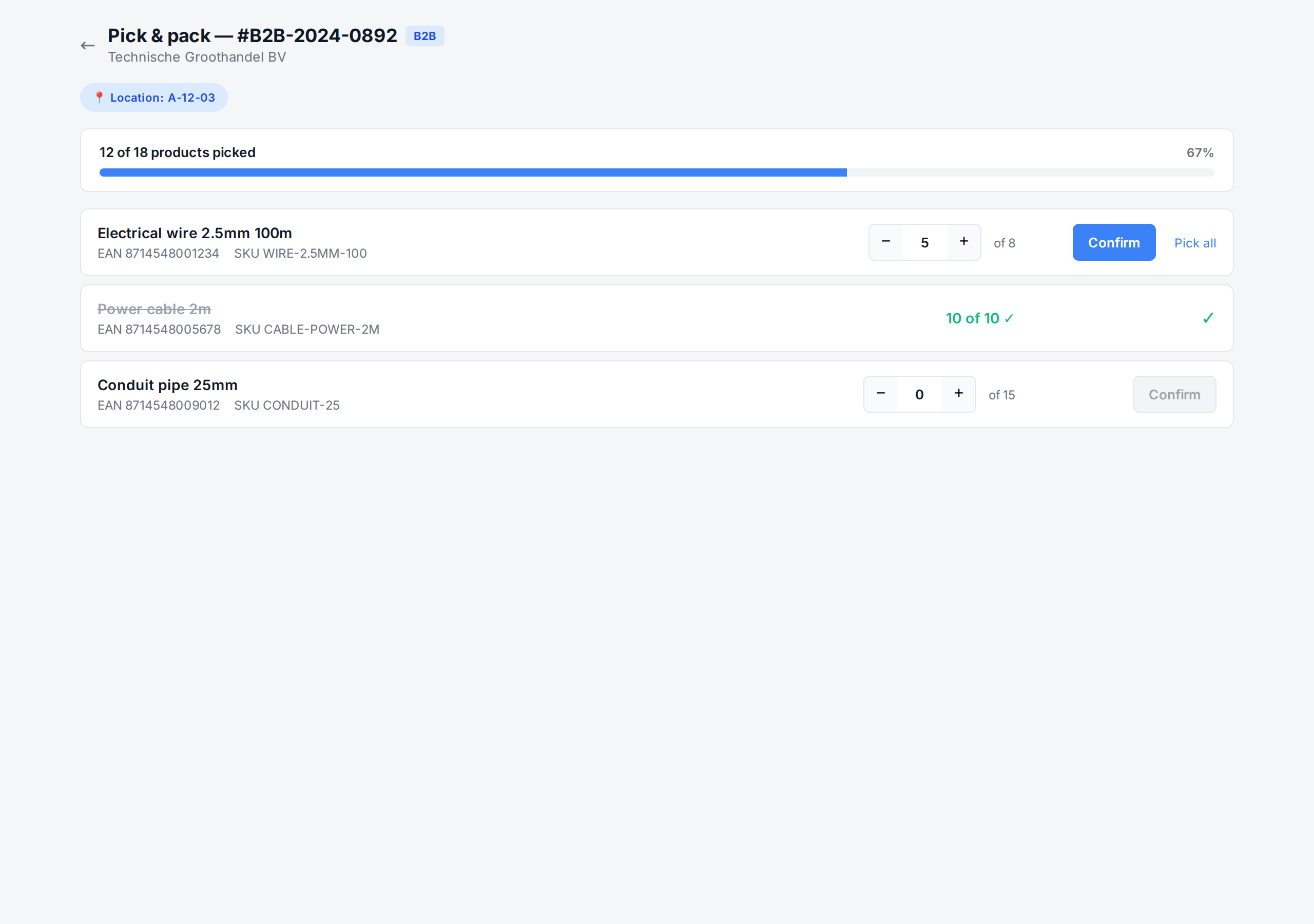
A green check appears once the line’s picked quantity matches the order quantity. The order can be packed and shipped as soon as every line is checked.
Parallel picking
Multiple users can pick the same B2B order in parallel. Each picker sees the current picked quantities in real time, preventing double-picking. This is useful for large orders that span multiple pallets — assign one picker per pallet.
Stock reservations
B2B orders reserve stock at the moment the order is created, just like B2C orders. The bulk pick service keeps the reservation in sync with what’s actually been picked — if you pick less than ordered (for example because of a shortage), the leftover reservation is released so the stock becomes available again for other orders.
Pausing and resuming
You can leave the B2B pick screen at any time. Progress is saved per line, so when you return the picker (or a colleague) can pick up exactly where it was left off.
After picking
Once all lines are picked you can:
- Print the B2B packing slip and pallet labels from the B2B documents menu (see B2B documents and printing).
- Assign products to pallets if the shipment type is Pallet or Freight.
- Buy shipping labels for Parcel shipment type, or attach an external freight booking for Pallet/Freight.
- Close the order from the open-order panel.
Was this helpful?