Creating a B2B order in ChannelDock
Last updated
B2B orders are wholesale/business orders that use a dedicated bulk pick and pallet/freight workflow. Marking an order as B2B unlocks extra fields for PO numbers, payment terms, shipment type, and pallet counts.
New to B2B orders? Start with the Getting started with B2B orders hub article for a workflow overview and B2B vs B2C comparison.
Creating a new B2B order
-
Go to ‘New order’ from the Orders menu.
-
Fill in the customer and product details as you would for a regular order.
-
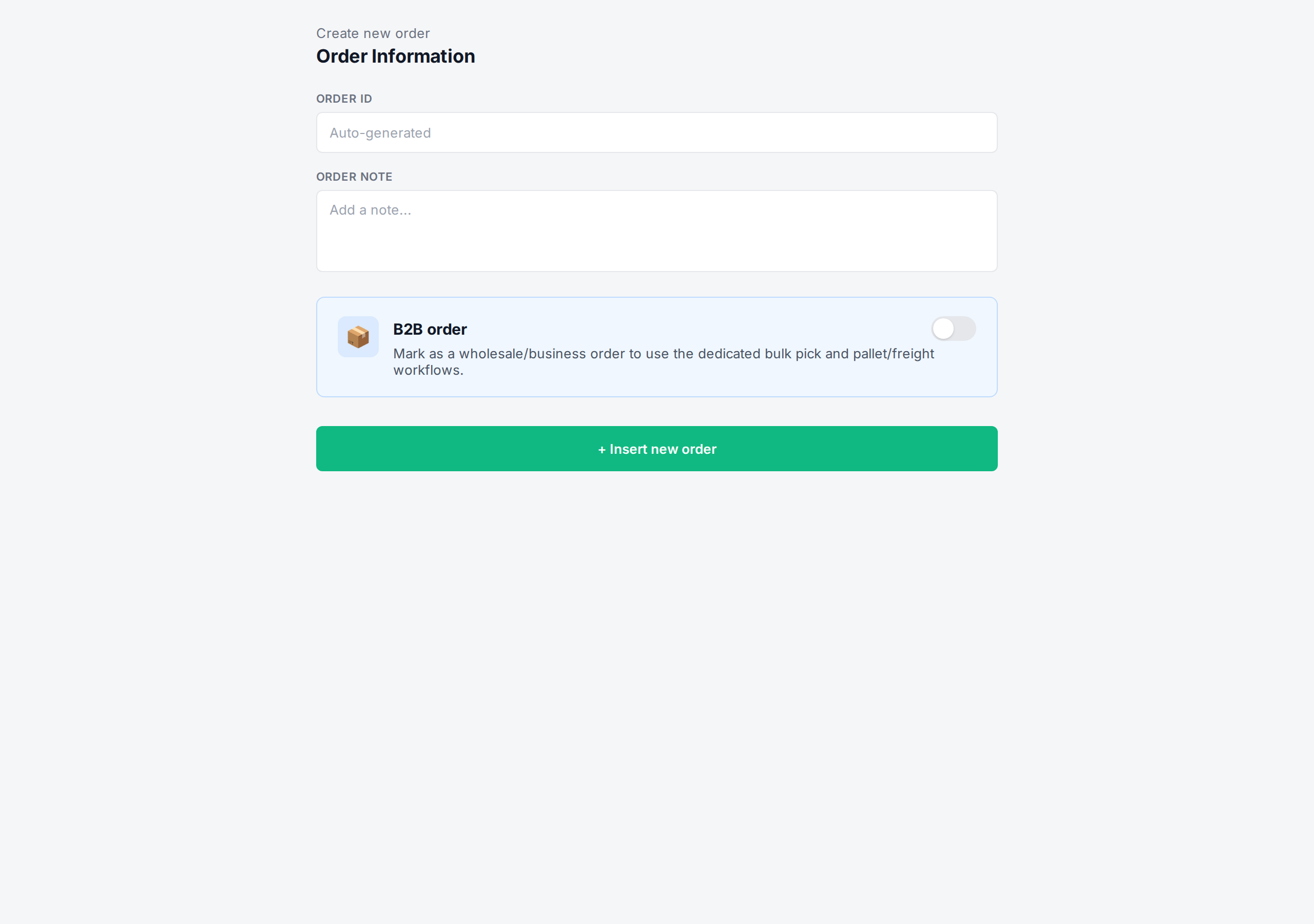
Scroll down to the B2B order section and toggle ‘Mark as a wholesale/business order’.
-
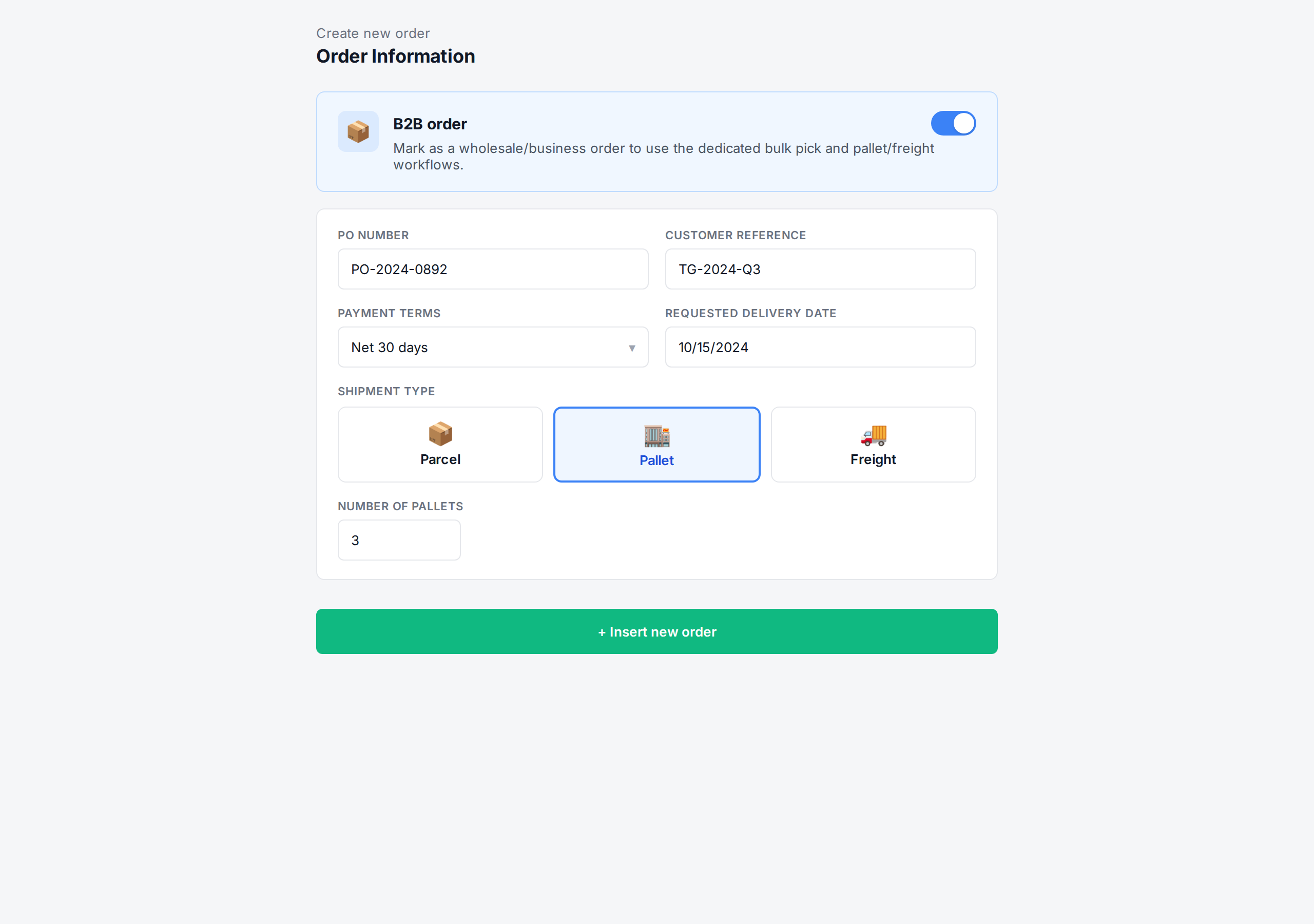
Fill in the B2B fields that apply:
- PO number — the purchase order number provided by your business customer.
- Customer reference — any internal reference the customer wants printed on documents.
- Payment terms — for example Net 30 or Prepaid.
- Requested delivery date — the date the customer expects the goods.
- Shipment type — choose Parcel, Pallet, or Freight (see B2B shipment types).
- Number of pallets — visible only when the shipment type is Pallet or Freight.
-
Click Insert new order to save.
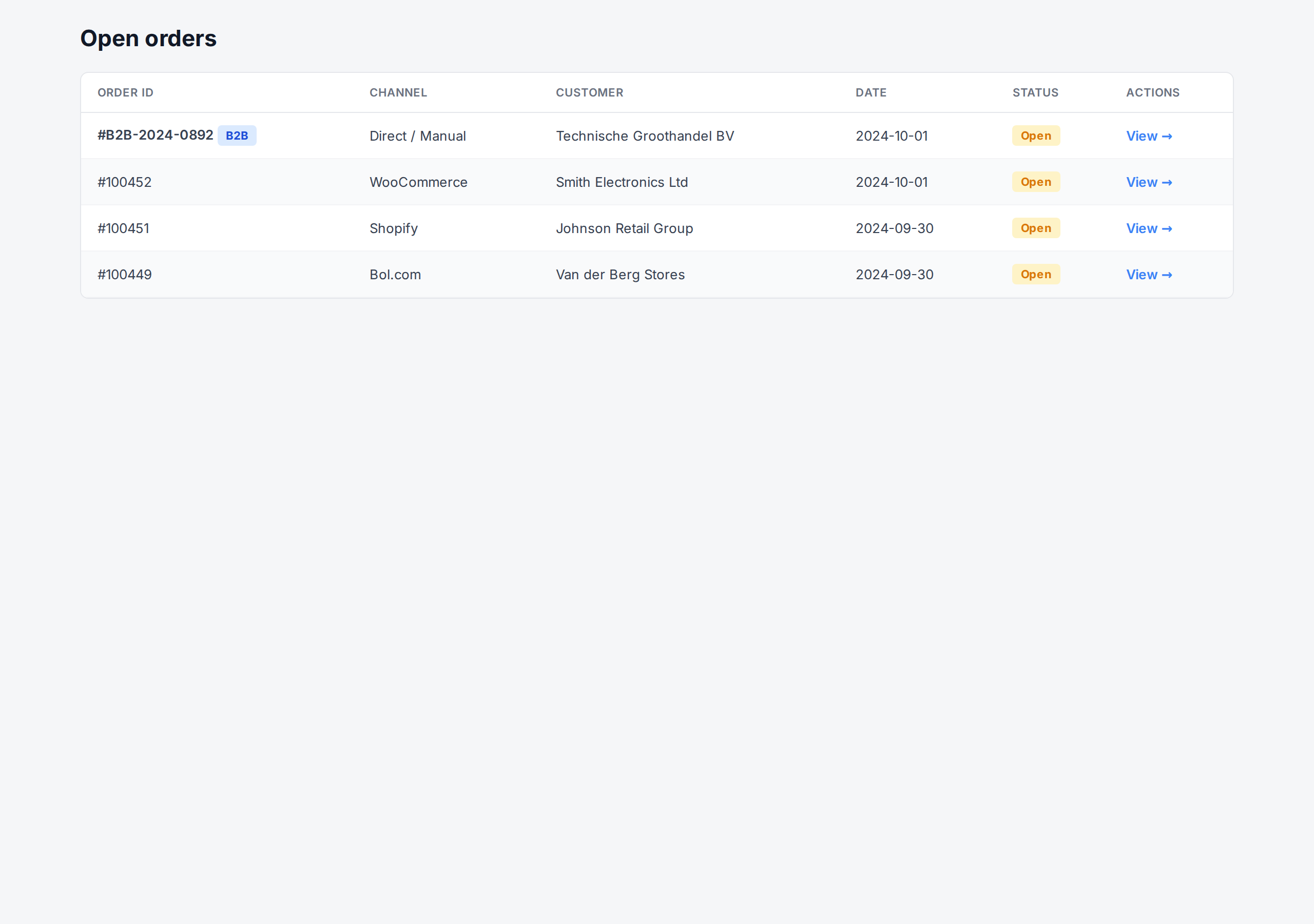
The order is now flagged as B2B — you’ll see a small B2B badge in the order list and a pallet icon on the open-order panel. It will be eligible for the bulk pick workflow and you can add pallet or freight packages to it.
Converting an existing order to B2B
You can also turn an existing order into a B2B order. Open it from the order list, click Edit order, scroll to Other info, and toggle the B2B switch.
Using the B2B Portal instead
If you’d rather let your business customers place B2B orders themselves, see Using the B2B Portal to set up a self-service portal.
Next steps
- B2B shipment types — choose Parcel, Pallet, or Freight
- Setting up products for B2B picking — configure units per box
- Bulk picking B2B orders — the dedicated pick & pack flow
- B2B documents and printing — packing slips, pallet labels, CMR
Was this helpful?