Setting up products for B2B picking
Last updated
The B2B pick & pack flow works best when your products are configured with the right unit quantities. When ChannelDock knows how many units are in a carton or on a pallet, pickers can confirm quantities in bulk instead of counting individual units.
Units per box
The Units per box field on a product tells ChannelDock how many individual units are in one carton or box. This is used in the B2B pick screen to let pickers confirm a full carton in one action.
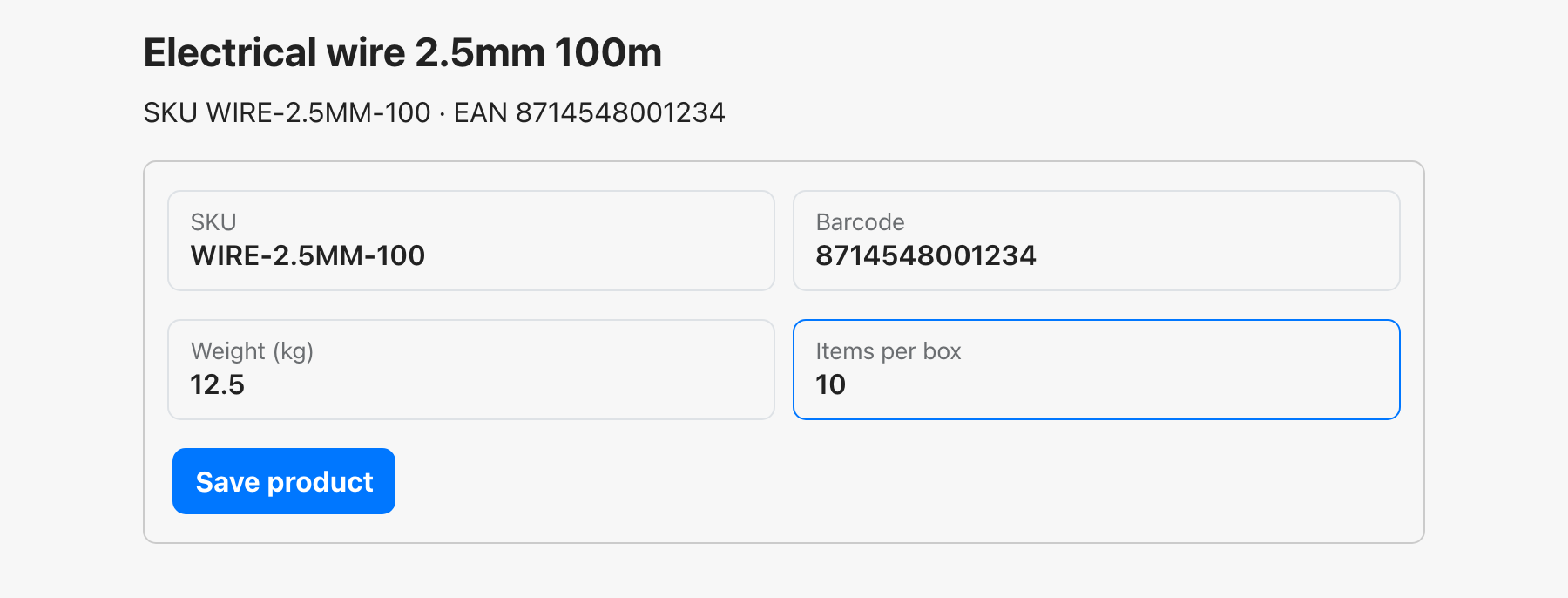
Setting units per box on a single product
- Go to Products in ChannelDock.
- Open the product you want to edit.
- In the product details, find the Units per box field.
- Enter the number of units in one carton.
- Save the product.
Bulk Excel update
For large catalogs, you can set units per box for many products at once using an Excel import:
- Go to Products and click Export to download a spreadsheet of your products.
- In the exported Excel file, find the Units per box column and fill in the values for each product.
- Save the file.
- Click Import in the Products page, select the saved file, and confirm the import.
Tip: If a product doesn’t have a units-per-box value, the B2B pick screen will only let pickers enter the picked quantity in individual units. Setting units per box speeds up picking significantly for wholesale orders.
Product checklist for B2B
Before you start using the B2B pick & pack flow, make sure these fields are filled in for the products you’ll be picking:
| Field | Why it matters | Where to set it |
|---|---|---|
| SKU | Identifies the product on the pick list and pallet label | Product details |
| Barcode | Lets pickers scan to confirm the right product | Product details |
| Units per box | Enables carton-level picking | Product details or bulk Excel |
| Weight | Pre-fills pallet labels and freight documents | Product details |
| HS code | Required on commercial invoices for international shipping | Product details |
| Country of origin | Required on commercial invoices | Product details |
Bulk picking without units per box
If you haven’t set units per box, you can still use the B2B pick & pack flow — pickers will enter the picked quantity in individual units. This works fine for smaller B2B orders, but for wholesale volumes (full cartons, pallets) we recommend setting units per box on at least your top products.
Related articles
Was this helpful?