Getting started with B2B orders
Last updated
B2B orders in ChannelDock are wholesale/business orders that use a dedicated bulk-pick and pallet/freight workflow. When you mark an order as B2B, ChannelDock unlocks extra fields (PO number, payment terms, shipment type) and routes it through a purpose-built pick & pack flow designed for high-volume lines.
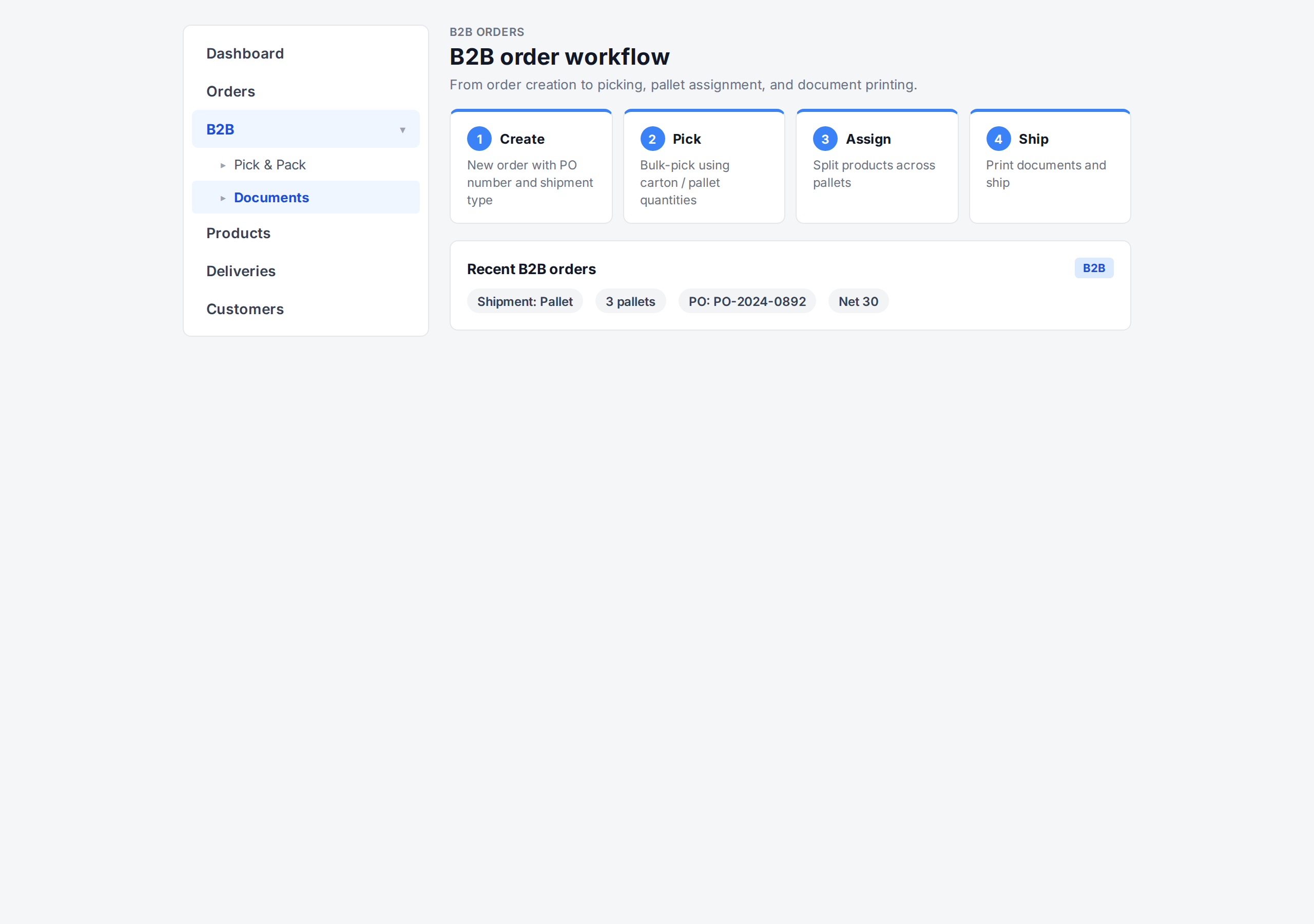
The B2B order workflow at a glance
| Step | What happens | Where in ChannelDock |
|---|---|---|
| 1. Create | Create a B2B order (or turn an existing order into B2B) with PO number and shipment type | Orders → New order |
| 2. Pick | Bulk-pick the order using carton/pallet quantities | B2B → Pick & Pack |
| 3. Assign pallets | Split products across pallets or freight packages | Open-order B2B panel |
| 4. Print documents | Print packing slips, pallet labels, CMR | B2B documents menu |
| 5. Ship | Buy parcel labels or attach an external freight booking | Open-order panel |
B2B vs B2C — what’s different?
| Feature | B2C orders | B2B orders |
|---|---|---|
| Quantities per line | Usually 1–5 units | Often full cartons or pallets |
| Picking flow | Scan each unit | Confirm carton/pallet quantities in one step |
| Shipment type | Always parcel | Parcel, Pallet, or Freight |
| Pallet assignment | Not available | Products assigned to specific pallets |
| PO number / payment terms | Not available | Included on documents |
| Documents | Packing slip, carrier label | Packing slip, pallet label, CMR, delivery note |
Where to start
- New to B2B orders? Start with Creating a B2B order.
- Want to let customers place B2B orders themselves? See Using the B2B Portal.
- Not sure which shipment type to choose? Read B2B shipment types.
- Need to prepare your product data for picking? See Setting up products for B2B picking.
- Fulfillment center receiving a delivery for a B2B customer? See Creating a B2B order from a delivery.
Was this helpful?