Assemble bundles on a stock location
Last updated
A bundle in ChannelDock normally has no stock of its own. Its stock is calculated from the products inside it, and when a bundle is ordered, the separate products are picked. See Automate inventory through product bundles for how to set up a bundle.
Some sets are better packed in advance: a gift box, a starter kit or a set you sell a lot. With Assemble bundle you turn the products into ready-made bundles and put them on a stock location. Orders are then picked from those bundles first, so the picker takes one box instead of all the parts.
This works the same for sellers and for fulfillment centers.
Before you start
- The product is a bundle with at least one product added on the Bundle tab.
- The products in the bundle have stock on a stock location.
- Only free stock counts. Stock that is reserved for open orders cannot be used to assemble bundles.
Assemble bundles
-
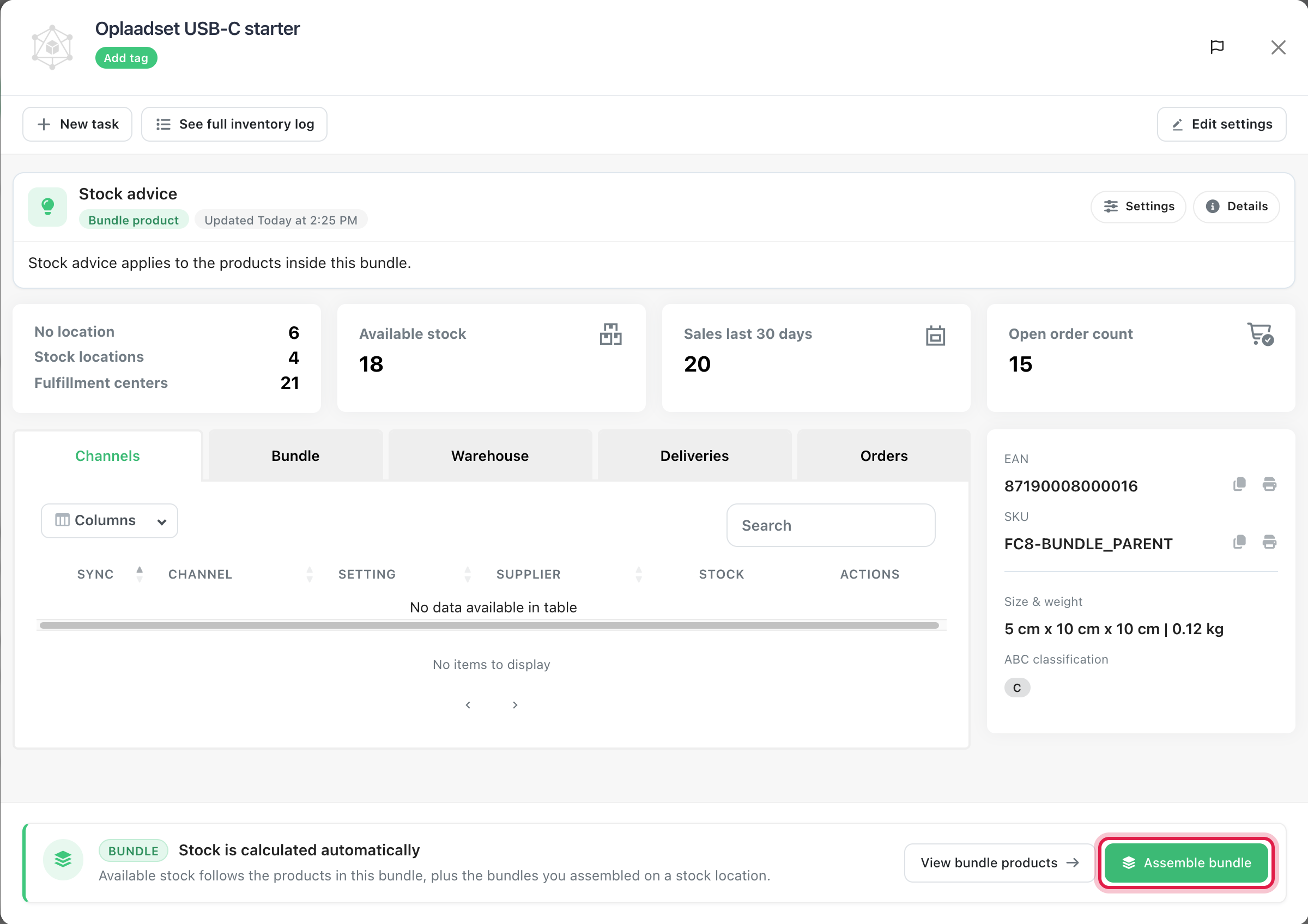
Open the bundle in the product window. At the bottom, click Assemble bundle.
-
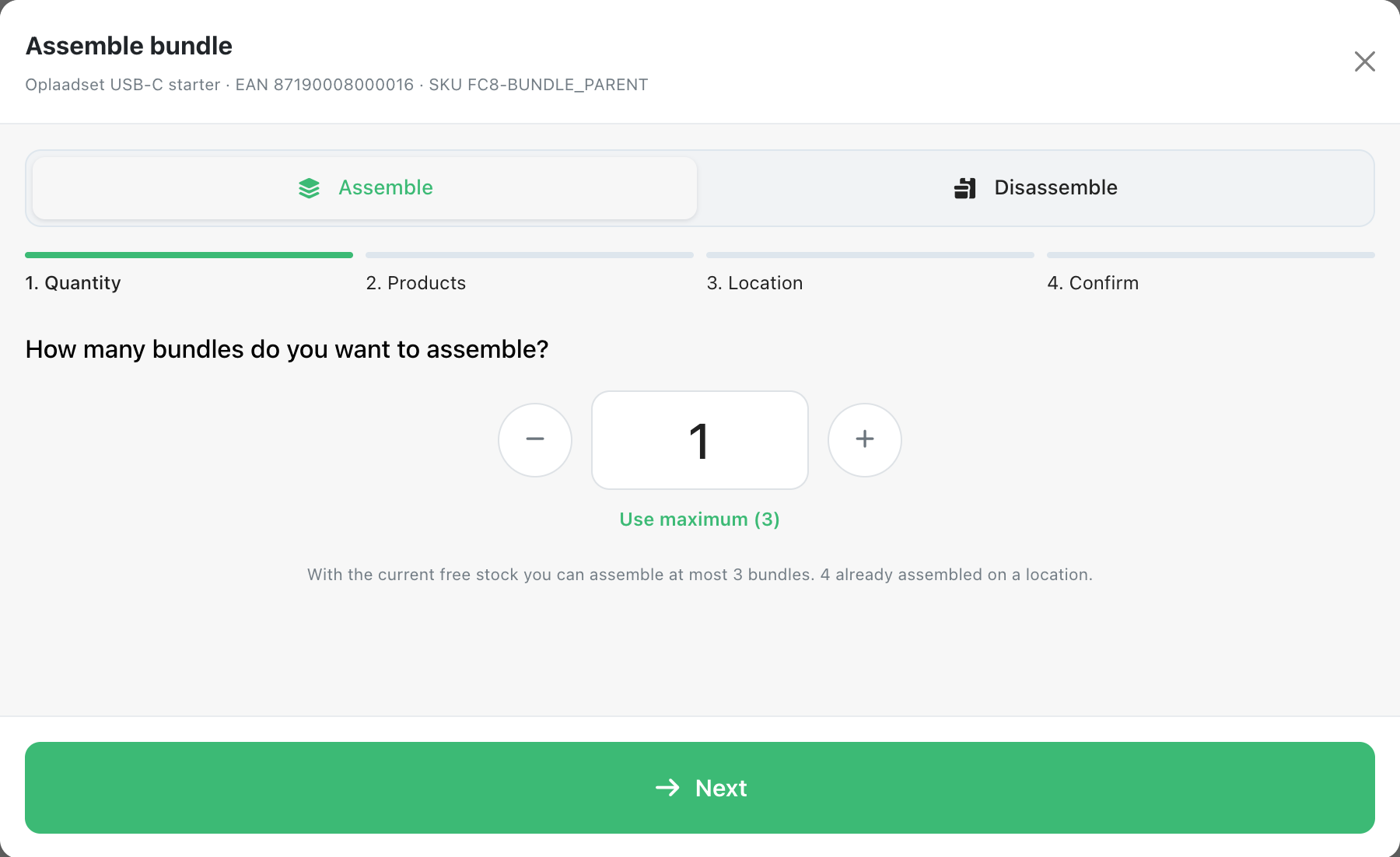
Quantity: enter how many bundles you want to make. ChannelDock shows the maximum you can make with the current free stock. Click Use maximum to fill it in, then click Next.
-
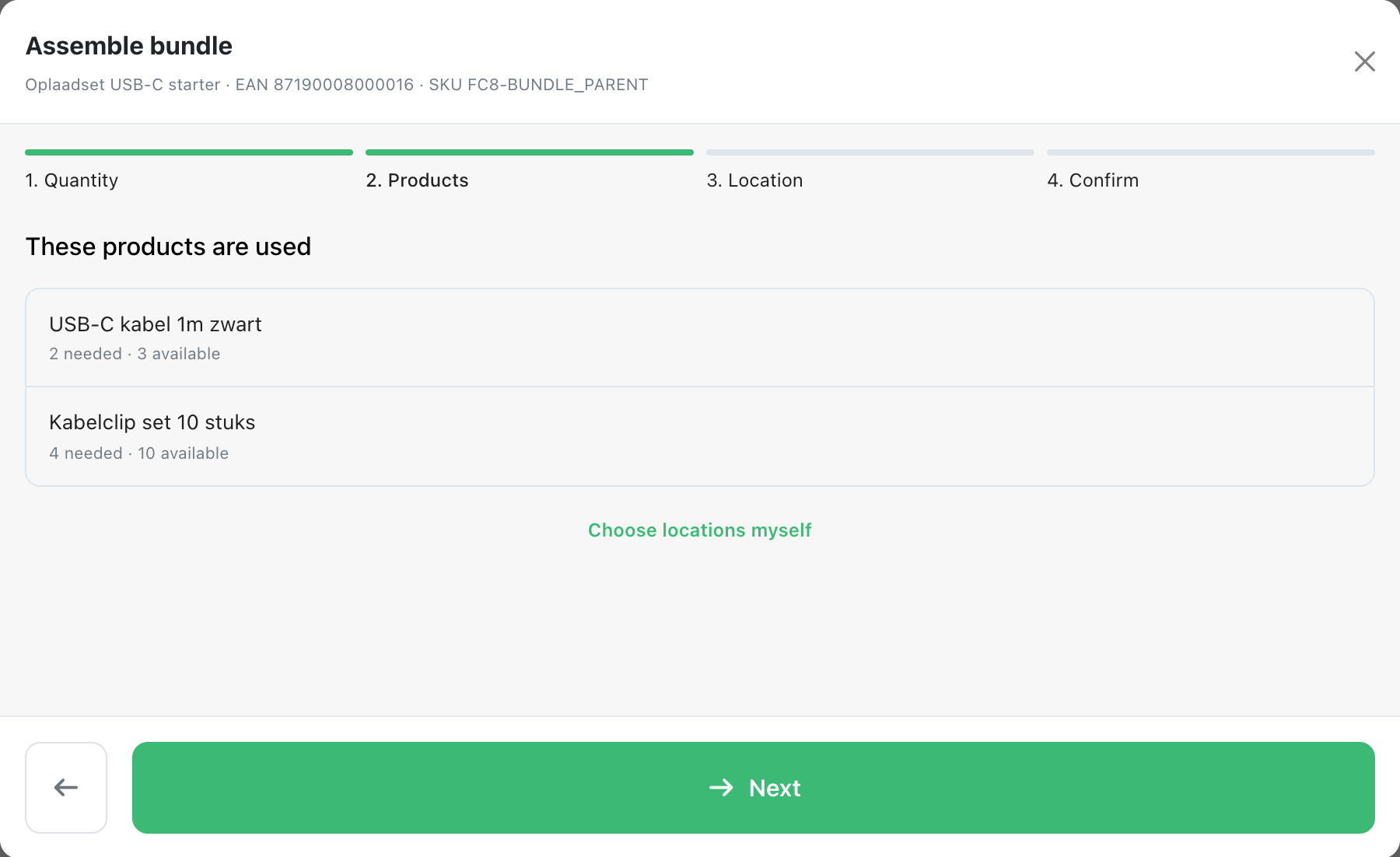
Products: check which products are used and how many of each are needed. ChannelDock takes them from their locations automatically: the earliest expiration date first, and storage locations before pick locations. To choose the locations yourself, click Choose locations myself. Click Next.
-
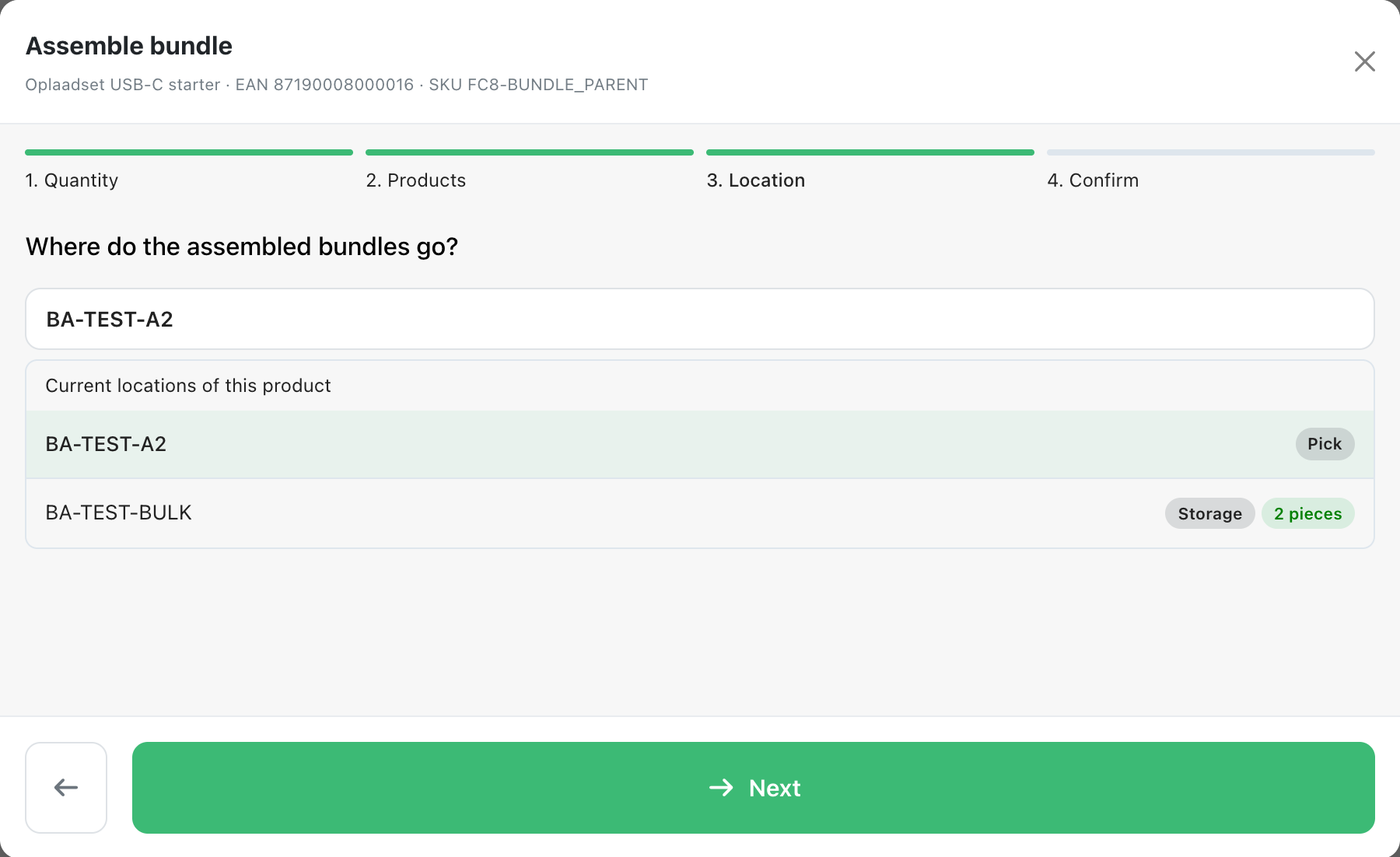
Location: choose where the assembled bundles go. The current locations of this bundle are shown first. You can also search for another location. Click Next.
-
Confirm: check the bundles, the location and the products that are taken. Click Assemble 2 bundles (the button shows your number) to finish.
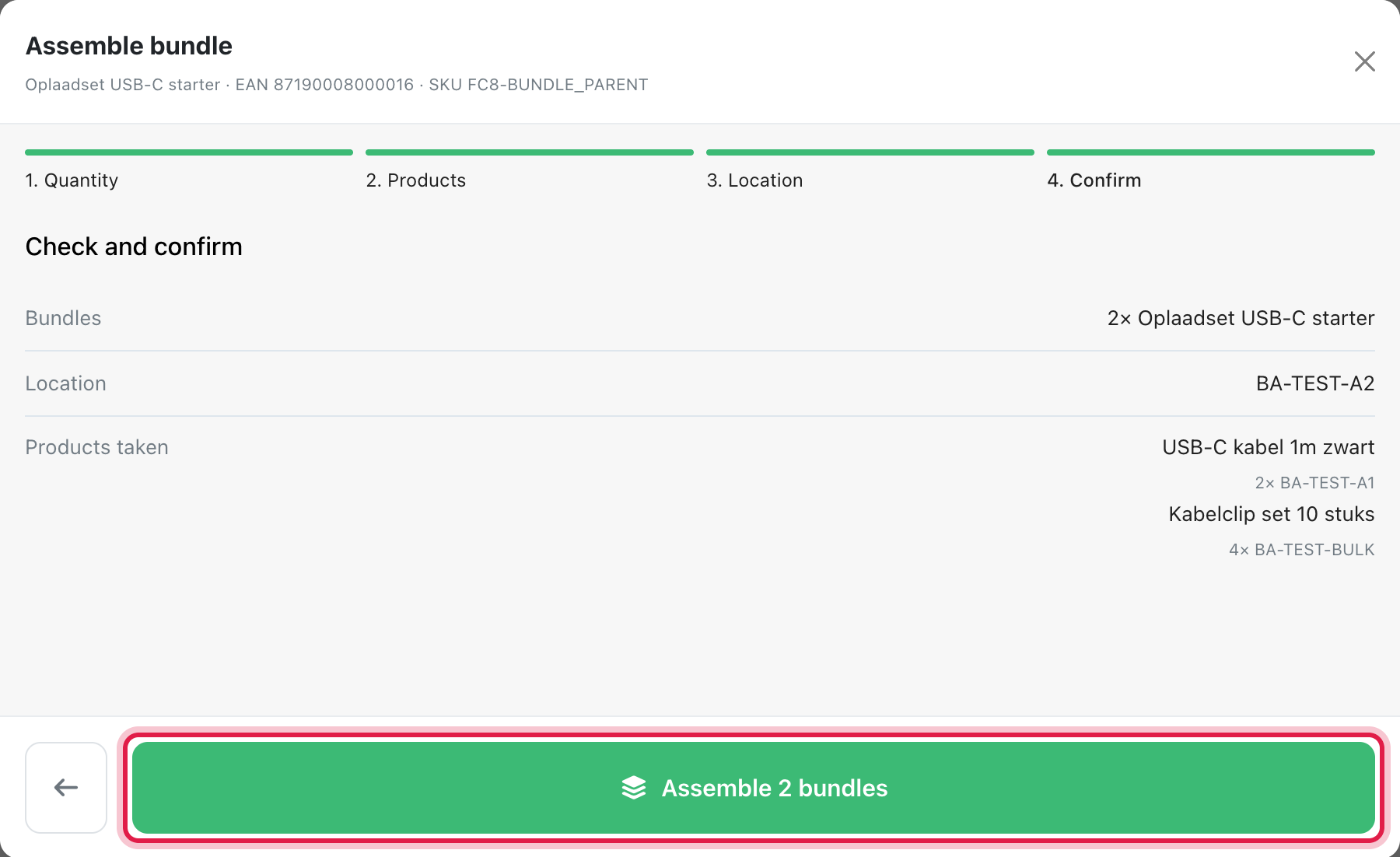
The products are taken off their locations and the bundles are added to the location you chose. Both appear in the inventory log with the same reference, for example BA-261022-3F9A. If the products have an expiration date, the assembled bundles get the earliest one.
Take bundles apart
Need the separate products again? Take the bundles apart.
-
Open the bundle and click Assemble bundle. Choose Disassemble at the top. This tab only shows when the bundle has assembled stock.
-
Quantity: choose the location to take the bundles from and how many bundles you want to take apart. Click Next.
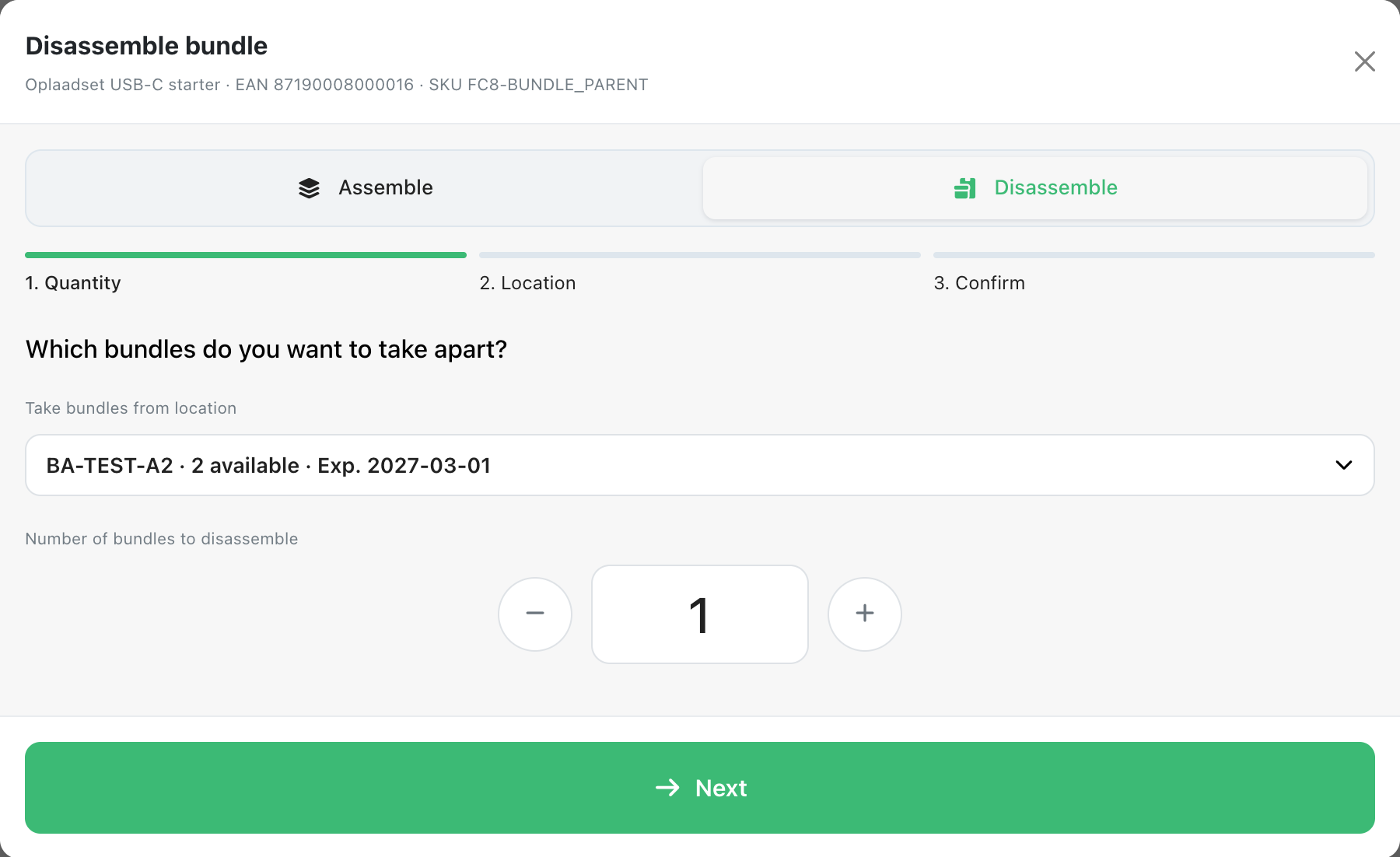
-
Location: choose where the products go. Each product back to its own location puts every product on a location where it already lies. With All products on one location you choose one location for all of them. Click Next.
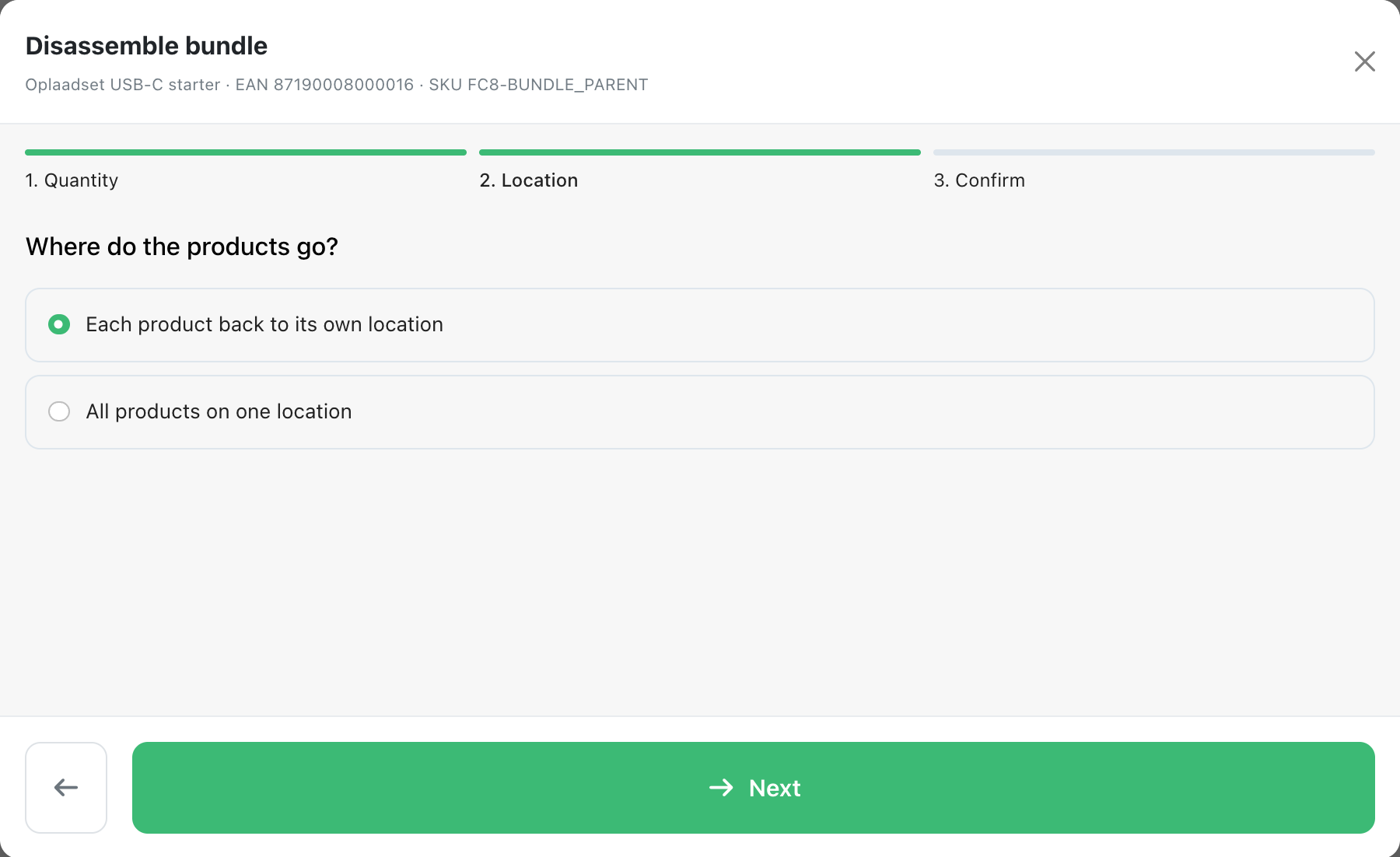
-
Confirm: check and click Disassemble 1 bundle (the button shows your number).
The inventory log reference for taking bundles apart starts with BD-.
Stock of an assembled bundle
- Available stock of the bundle is what you can still make from the products, plus the assembled bundles that are not yet reserved for an order.
- A bundle only gets stock on a location through Assemble bundle. You cannot add a stock location to a bundle or raise its stock by hand.
- You can move assembled bundles to another location, and lower their stock, for example after a stock count.
- While a bundle has assembled stock, you cannot change its products or turn off Product is a bundle. Take the bundles apart first.
Picking and packing
When a bundle is ordered, ChannelDock checks per order line whether there are enough assembled bundles for the whole line:
- Enough: the line is picked as assembled bundles from their location.
- Not enough: the whole line is picked as separate products. A line never mixes assembled bundles with separate products.
Older orders get the assembled bundles first. When an order line does not fit, a later, smaller line can still use them. For example: with 3 assembled bundles, an order for 2 gets assembled bundles, an order for 2 after that gets the separate products, and an order for 1 after that again gets an assembled bundle.
On the packing screen, packing slip and pick list, an assembled bundle is one line with the bundle’s EAN and location. You scan the bundle’s barcode instead of the products. At a fulfillment center, Report broken item on that line writes off the assembled bundle, not its products.
Turn it off
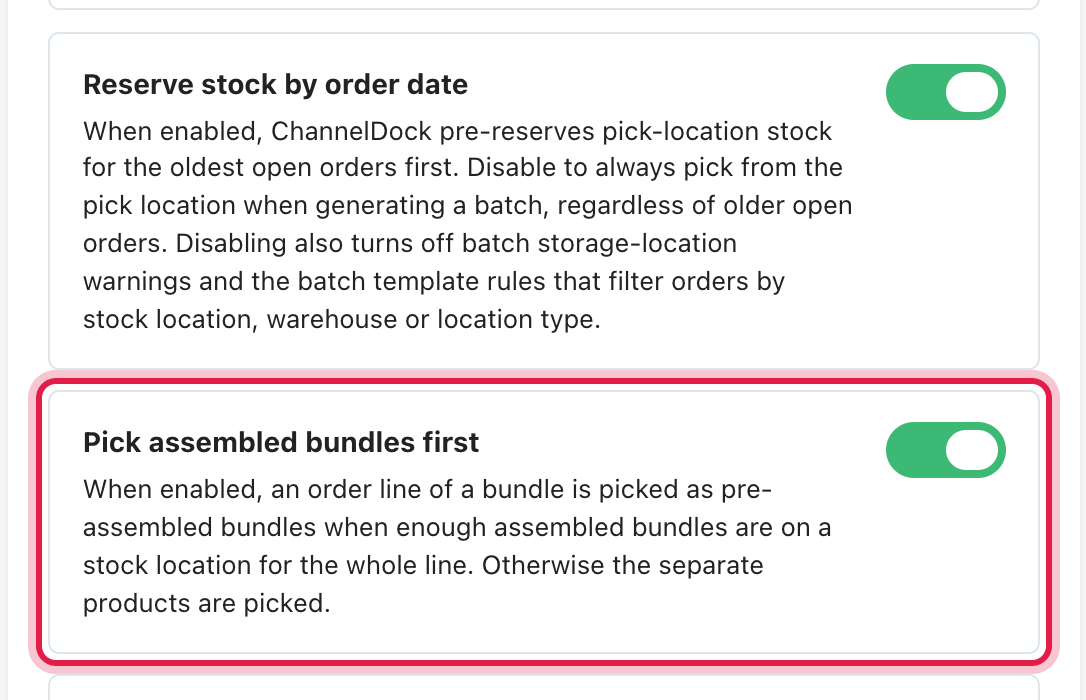
The setting Pick assembled bundles first is on by default. When you turn it off, new orders are picked as separate products again. Orders that are already picked as assembled bundles stay that way.
- Sellers: Settings > General settings, card Stock settings.
- Fulfillment centers: Settings > Account, card Stock & orders.
Returns and invoicing
- A returned bundle goes back to stock as its separate products, also when it was shipped as an assembled bundle.
- Fulfillment invoicing keeps counting an assembled bundle as its separate products, just like a bundle that is picked as separate products.
Was this helpful?